

Quick answer: Use the Digital Culturist mobile app during your doom-scroll sessions because it turns the posts you'd lose in your feed into research you can use. From LinkedIn, Instagram, TikTok and other apps, tap the share button, choose Digital Culturist, pick a folder and save. Every save is analyzed with the Digital Culturist 4C Framework, so late-night scrolling becomes cultural insight.
Why does a mobile app help when you doom-scroll?
Most cultural signals show up on your phone, often late at night, in the middle of a scroll. That's also when they're easiest to lose. A screenshot ends up in your camera roll, a saved post sits inside one app, and by morning you've forgotten why it mattered. The Digital Culturist mobile app catches the signal at the moment you see it. Here are four reasons it helps:
It works from the share button you already use. No new app to open mid-scroll. Tap share in LinkedIn, Instagram or TikTok and choose Digital Culturist.
Saving takes seconds. Pick a folder, tap Save and go straight back to your feed.
Every app goes to one place. Saves from LinkedIn, Instagram, TikTok and more land in the same signal library as your desktop saves.
Your saves are organized before you put the phone down. File each one to one or more folders as you save it.
Scrolling time becomes research time. Each save is analyzed with the 4C Framework, so your saves turn into insights without extra work.
| Saving in your feed | Saving with the Digital Culturist mobile app | |
|---|---|---|
| How you capture | Screenshots or each app's own save button | Share button, then Digital Culturist |
| Where saves live | Camera roll and separate apps | One signal library, shared with desktop |
| Organization | None, or sorted later | Filed to folders as you save |
| What you get later | A pile of posts | Each save analyzed with the 4C Framework |
What do you need to get started?
The Digital Culturist mobile app on your phone, signed in to your account.
Digital Culturist in your share sheet. It appears among the apps when you tap share. If you don't see it, scroll the app row to the end and add it.
Your usual apps: LinkedIn, Instagram, TikTok, YouTube, Threads or X.
What does a doom-scroll session with the mobile app look like?
Here is one scroll session that moves from LinkedIn to Instagram to TikTok. Every save follows the same pattern: tap share, choose Digital Culturist, pick a folder, tap Save.
1. Save a LinkedIn post from your feed
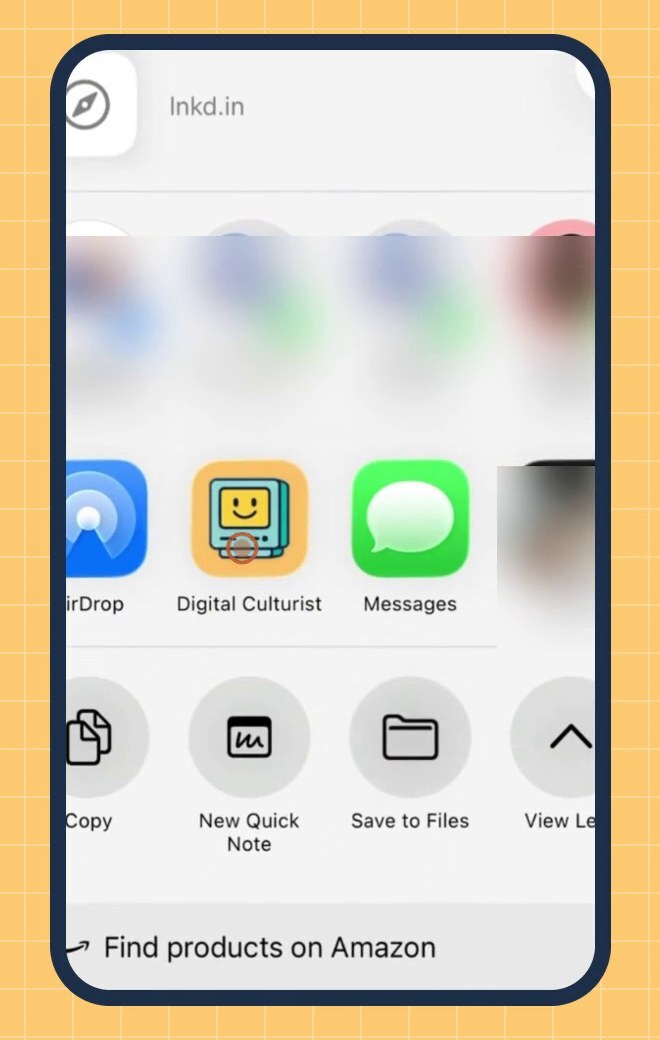
Spot a post worth keeping and tap LinkedIn's share icon, then the share option that opens your phone's share sheet. Tap Digital Culturist. In the save card, tap Choose to pick a folder, tap Done, then tap Save. You'll see a confirmation like Saved to 2027 Predictions, Platform.
2. Save an Instagram post to more than one folder
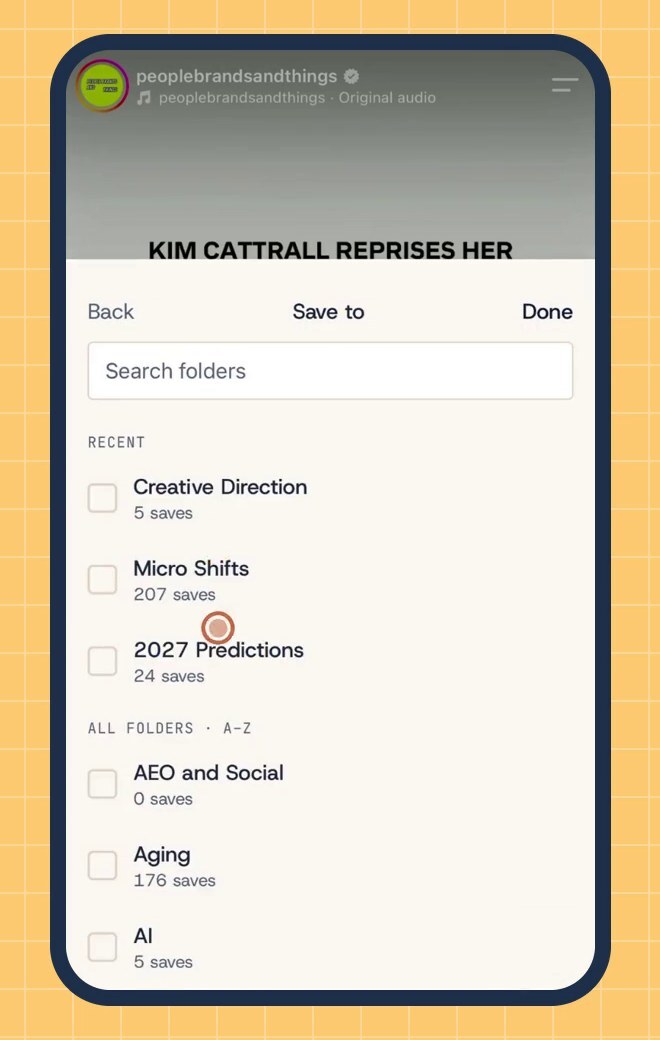
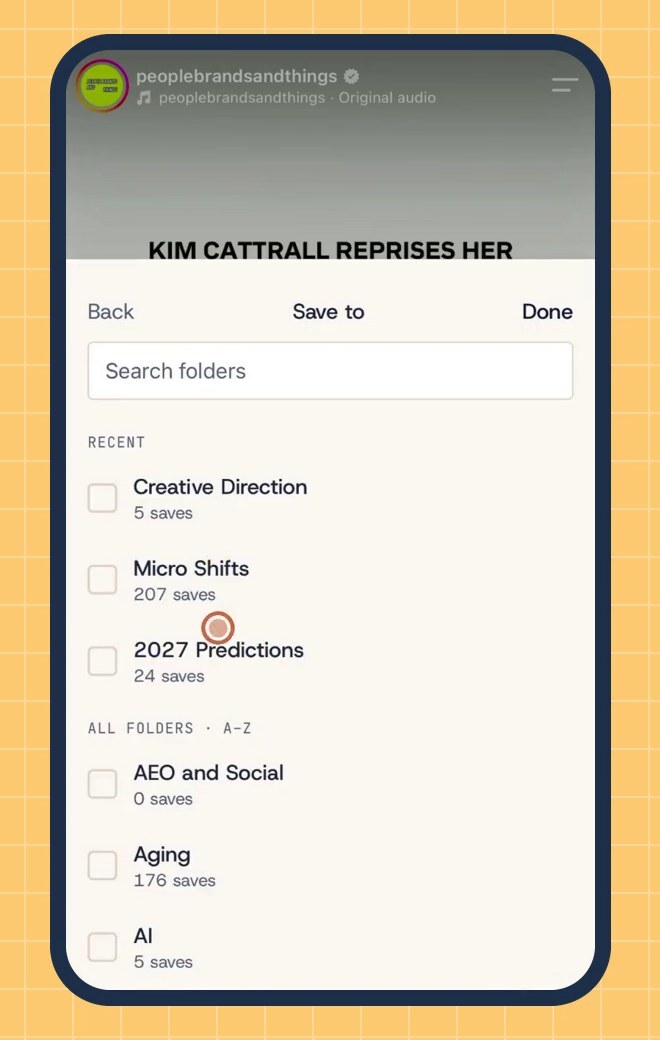
On Instagram, tap the share icon under the post, then share it to Digital Culturist. In Save to, tick every folder that fits. Here, the post goes to both Creative Direction and Micro Shifts. Tap Done and Save.
3. Save a TikTok mid-scroll
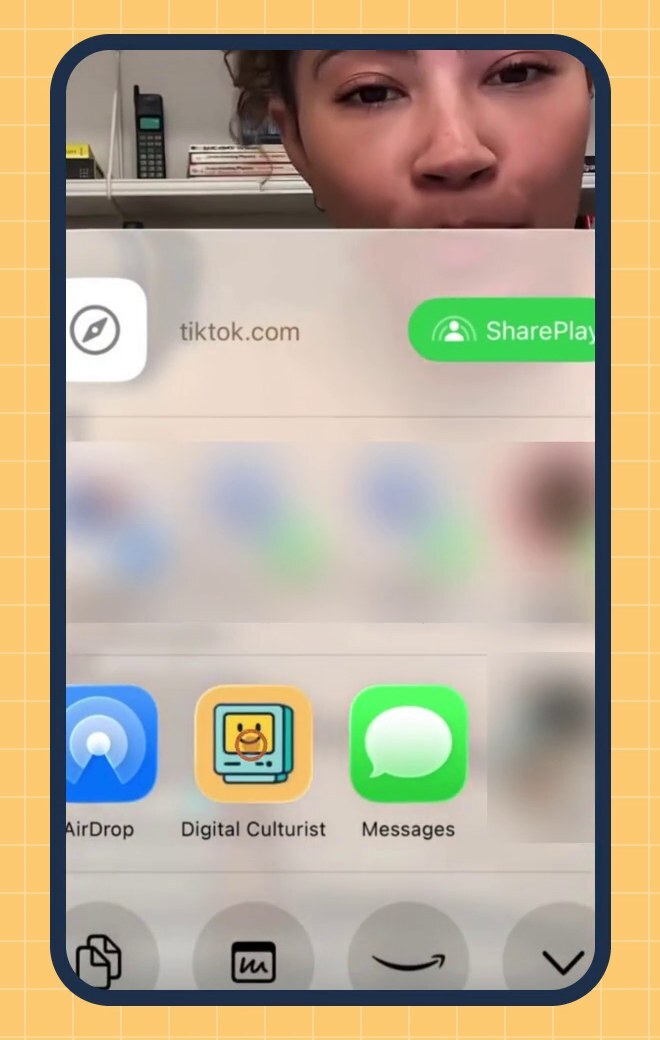
On TikTok, tap the share arrow, then More to open your phone's share sheet. Tap Digital Culturist, pick a folder and tap Save. The card shows the video's caption so you know what you're saving.
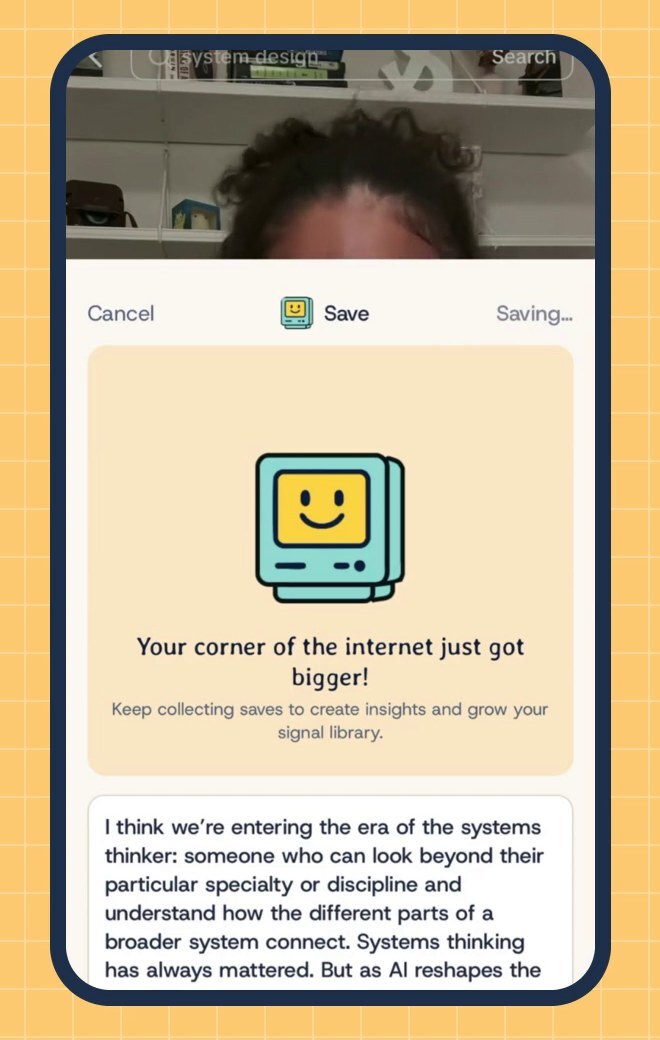
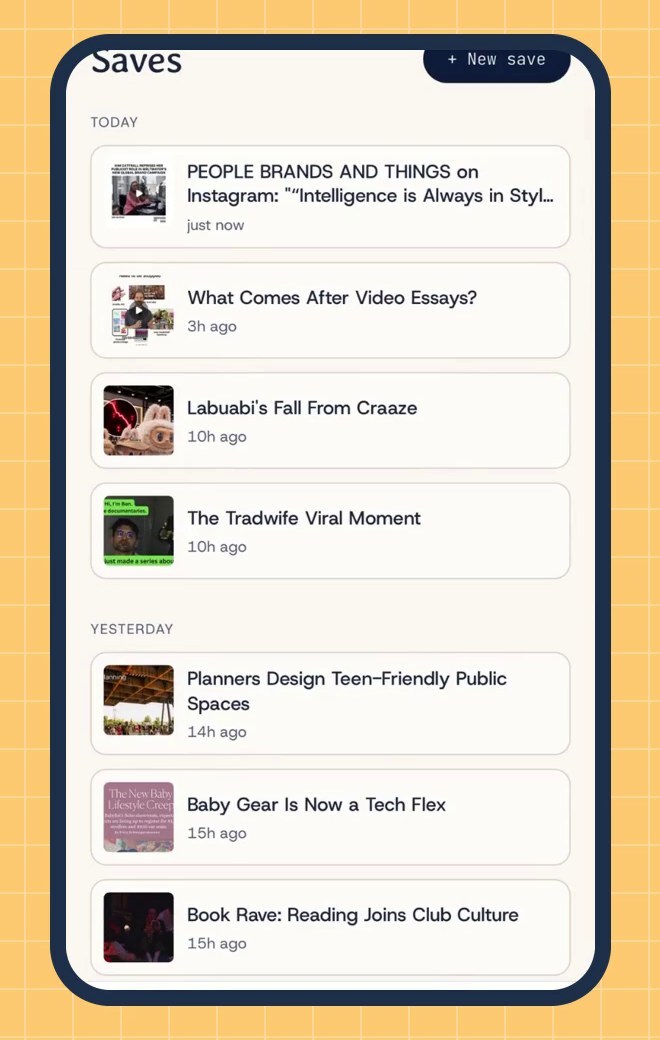
4. Find everything in your saves
Open Digital Culturist and every save from your session is waiting in your saves list, newest first, next to the ones you made on desktop.
What happens to your saves after you scroll? The 4C Framework
Every save from the mobile app is analyzed with the Digital Culturist 4C Framework, the same way as saves from the Chrome extension. Open a save on your phone and you'll see four color-coded sections:
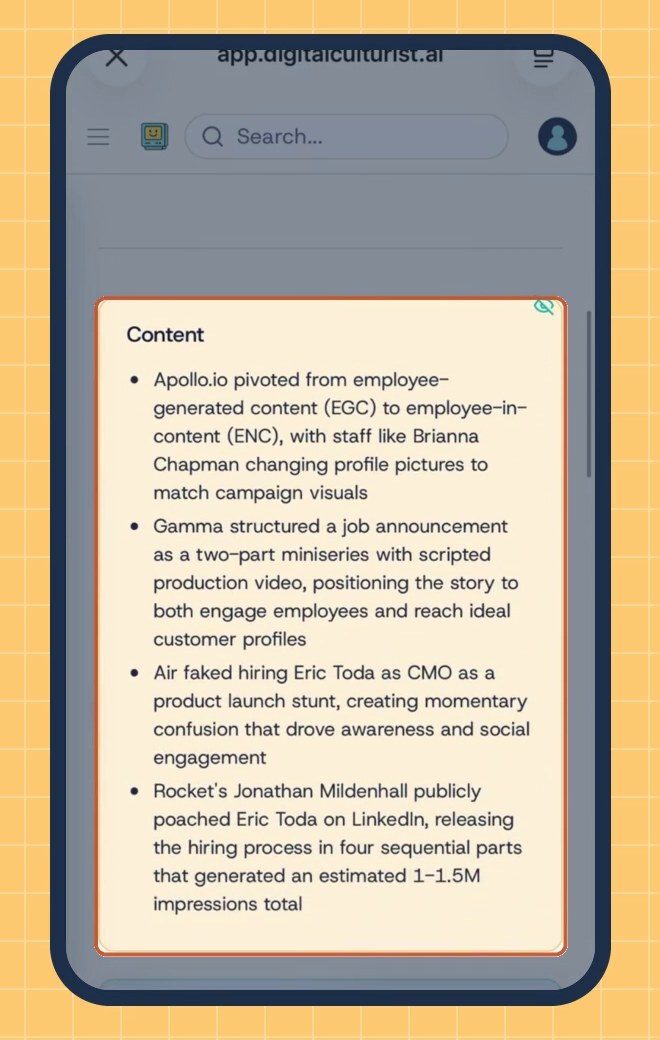
Content analysis (C1): what the post says, how it is built and the tactics it uses.
Comment analysis (C2): how the audience responds, including sentiment and recurring reactions.
Corner of the Internet (C3): the communities and audiences the post speaks to, and where it lives online.
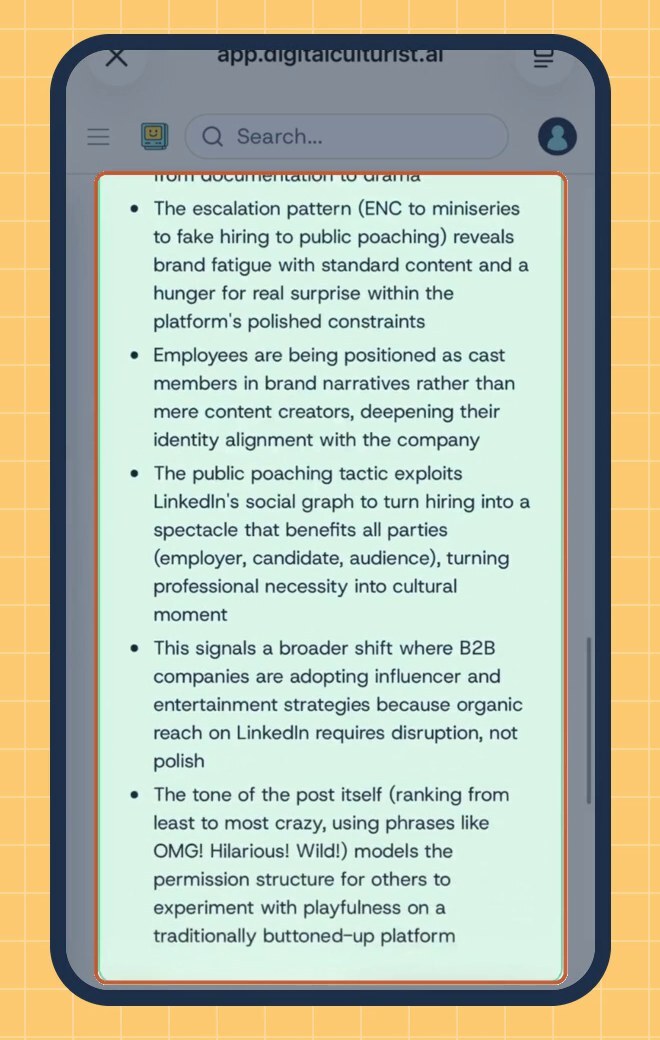
Culturist POV (C4): the larger cultural shift the post signals and what that means for brands and strategists.
The example below is the LinkedIn post saved in step 1. Its Content analysis breaks down how brands like Apollo.io, Gamma and Rocket use employee-led content on LinkedIn.
Its Culturist POV reads the same post as a signal that LinkedIn is becoming a stage for entertainment and narrative, not just professional announcements.
The analysis runs in the background and can take a few minutes, so a new save may not show all four sections right away.
Frequently asked questions
Why use the Digital Culturist mobile app instead of screenshots or in-app saves?
Screenshots get buried in your camera roll, and each app keeps its own saved posts. The Digital Culturist mobile app sends every save to one signal library, files it to folders as you save, and analyzes it with the 4C Framework.
Which apps can I save from on my phone?
LinkedIn, Instagram, TikTok, YouTube, Threads and X. In any of them, tap the share button and choose Digital Culturist.
How do I save a post from my phone?
Tap the app's share button, choose Digital Culturist from your share sheet, pick a folder and tap Save. Then go back to scrolling.
Can I save one post to more than one folder?
Yes. On the Save to screen, tick every folder that fits, then tap Done and Save.
Do mobile saves show up on desktop?
Yes. Saves from the mobile app and the Chrome extension go to the same Digital Culturist signal library.
What is the 4C Framework?
The 4C Framework is how Digital Culturist analyzes every save. It covers Content analysis, Comment analysis, Corner of the Internet and Culturist POV.
Watch: The Digital Culturist mobile app
Turn your late-night saves into cultural insights.